Subsite Software Solutions

Utility Locators SOftware

From utility locators to GPR locators, utility locating and mapping software can sometimes be a little complicated to install. That’s why we’ve broken down the process, making installing software on all your utility locating equipment as easy as possible.
Software Updates
HDD Locator Software - Accuview

AccuView®

How to install software:
Click the two install buttons below to download and install
1) USB drivers, then 2) the configuration utility.

– Internet Explorer Users: Select ‘Run’ once the file is downloaded.
– Other browsers: Open your browser downloads folder and click on the setup.exe file.

Requires Windows Vista SP2 or newer.

2450 Ground Penetrating Radar

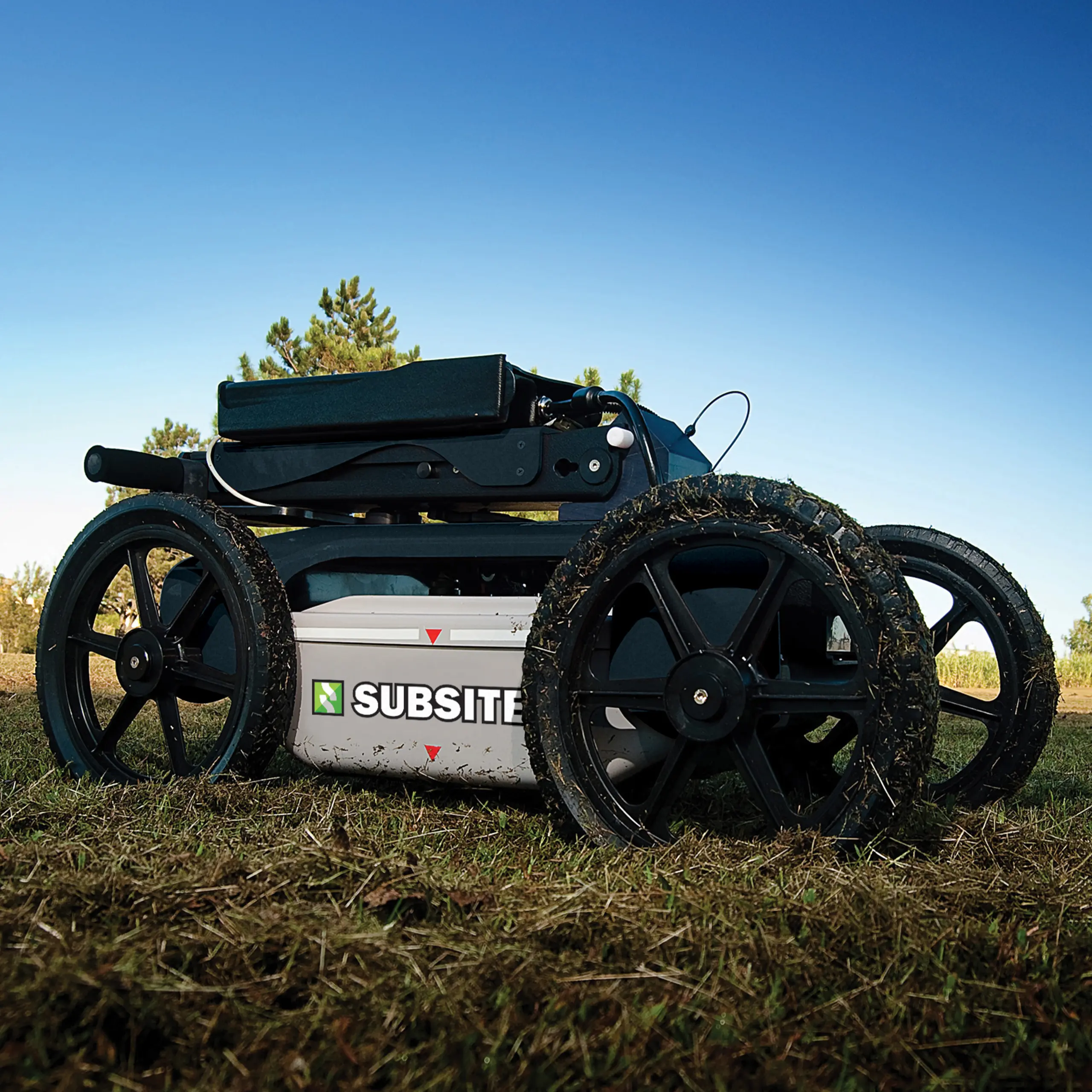
2450GR Ground Penetrating Radar

How to install software:
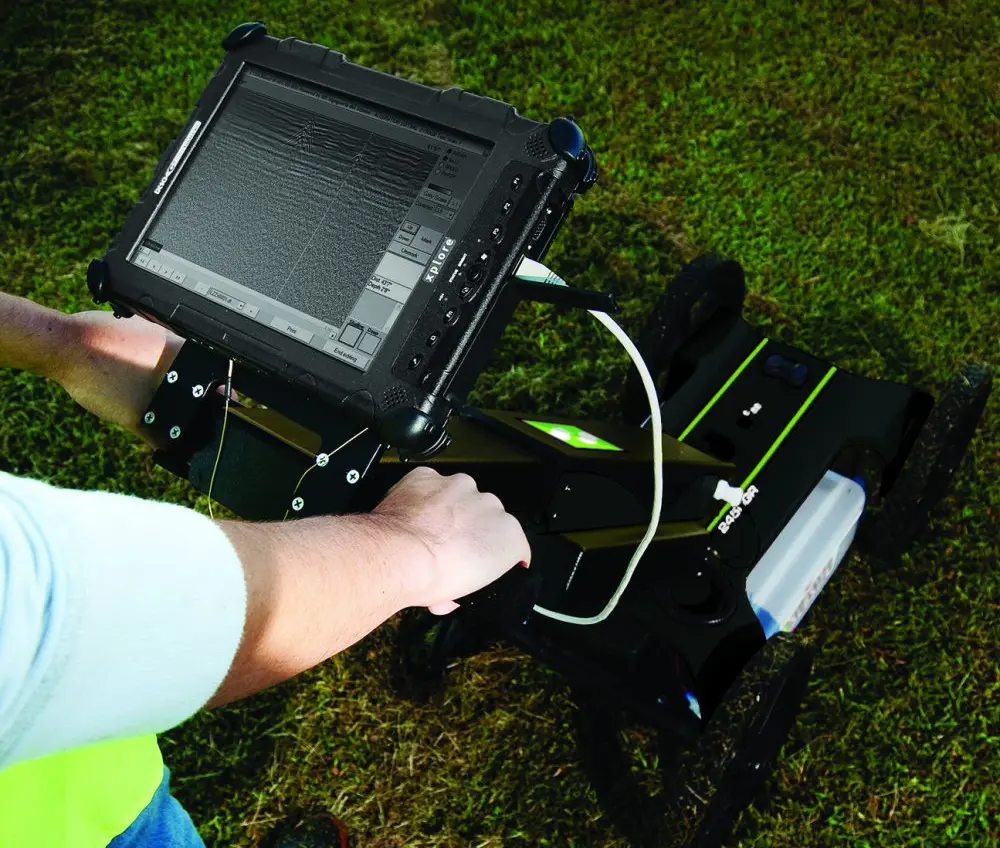
The tablet PC shipped with the 2450GR is already configured with acquisition software. If it is necessary to reinstall the software, follow the steps below:

1. Click on the 2450GR Software Update link below to download the latest version and save it to your computer.

2. Locate and open the downloaded file 2450GRDuoFW.msi.
3. Follow the screen cues and select a TYPICAL installation.
4. When installation is complete, follow the screen cues and click the FINISH button.

Set IP Address

1. Click on the Set IP Address button below to download file to your computer.
SET IP ADDRESS

2. Find the downloaded file “windows7_gpr_change_ip_192_168_200_150.zip” and expand the zip file contents to your hard drive.
3. Inside the zip file folder, locate and right click on the file “windows7_gpr_change_ip_192_168_200_150.cmd” and select “Run as Administrator”.
4. Select “Yes – Do you want to allow the following program to make changes to this computer”.
5. Restart the computer.

Ground Penetrating Radar

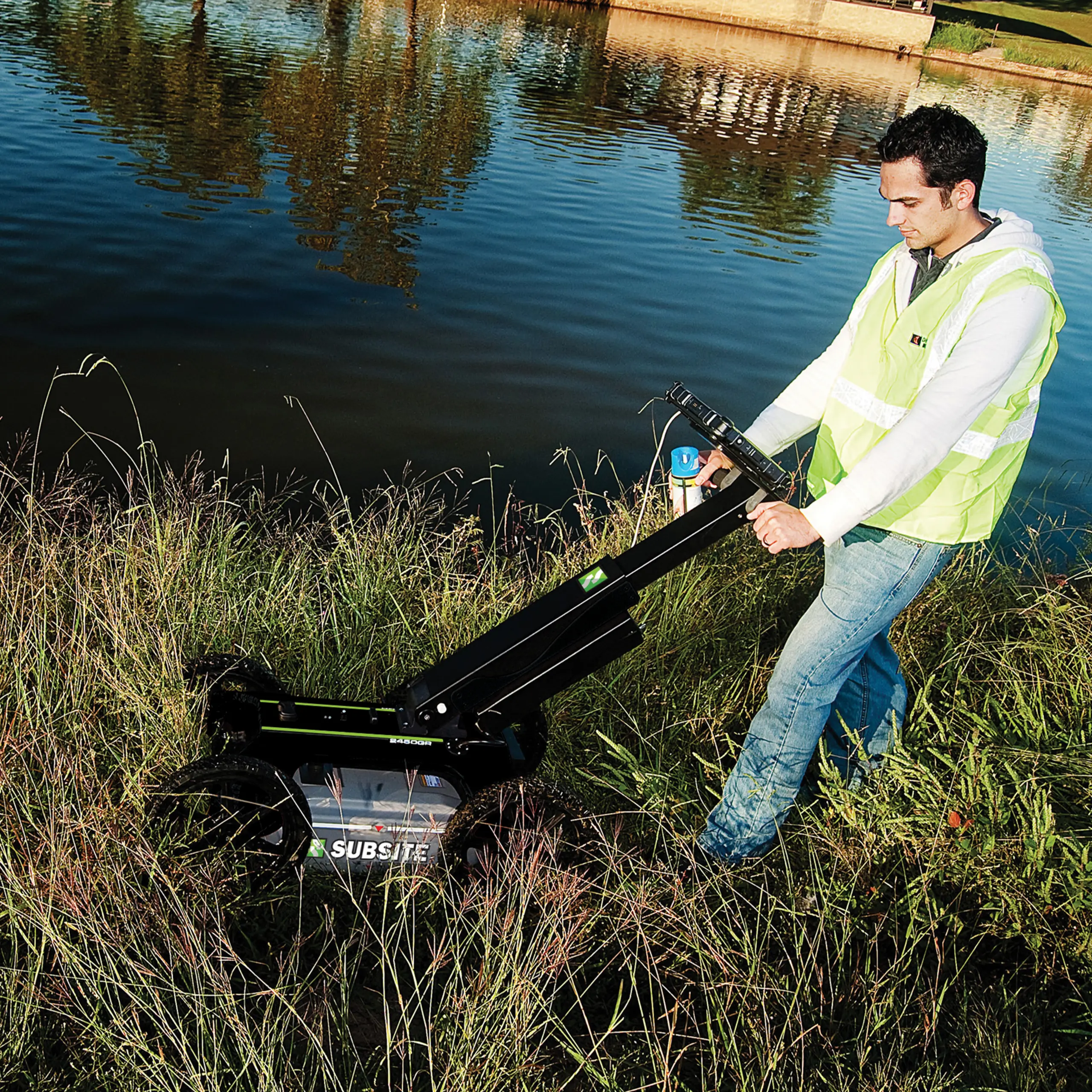
2550GR Ground Penetrating Radar

How to update software:

1. Click the 2550GR Software Update Procedure link below to download a PDF file that describes the update procedure.
2. Click on the 2550GR Software Update link below to download the latest version and save it to your computer.
3. Follow the update procedure.

2550GR SOFTWARE UPDATE PROCEDURE

2550GR SOFTWARE UPDATE

If you encounter a System Error stating “… MSVCP100.dll was not found.” when installing the 2550GR Software, then download and install the following.

DO NOT RUN THIS INSTALLATION ON LAPTOPS THAT HAVE NOT ENCOUNTERED THE MISSING .dll ERROR.
MISSING .DLL INSTRUCTIONS
MISSING.DLL FIX

Utility Locator - UtiliGuard2 Classic

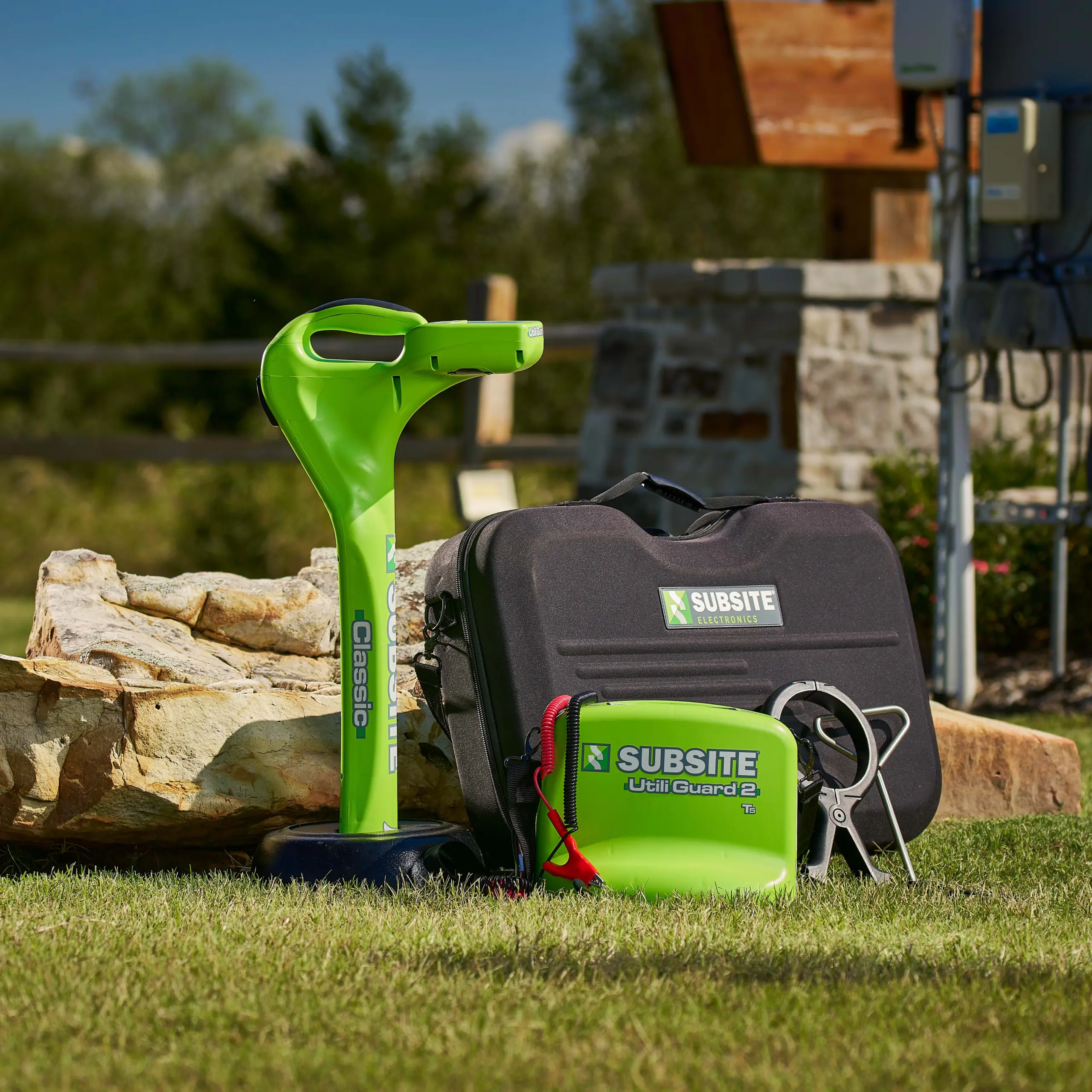
UtiliGuard® Utility Locating System

How to install software:
Click the two install links below to download and install
1) USB drivers, then 2) the configuration utility.

Internet Explorer Users: Select ‘Run’ once the file is downloaded.

Other browsers: Open your browser downloads folder and click on the setup.exe file.

Requires Windows Vista SP2 or newer. Uninstall previously installed versions of Locator Configuration Utility. 
UTILIVIEW FIELDS TEMPLATE PROJECT

2450 Ground Penetrating Radar

2550GPR Antenna IP Configuration

Download the file below to configure the IP on your laptop to connect to the GPR antenna. Once downloaded, open the file to auto-configure your settings. Only download this file to the laptop you will use with your GPR.

DOWNLOAD

Software Updates

Keep your underground locating and inspection equipment up-to-date to fix bugs, patch security vulnerabilities and ensure optimal performance.
Software Updates

Find Your Nearest
Ditch Witch® Dealer

We’re backed by Ditch Witch. Which means you’re backed by Ditch Witch. Find your local dealer below.
Find Your Dealer